Fleet
Backup and restore
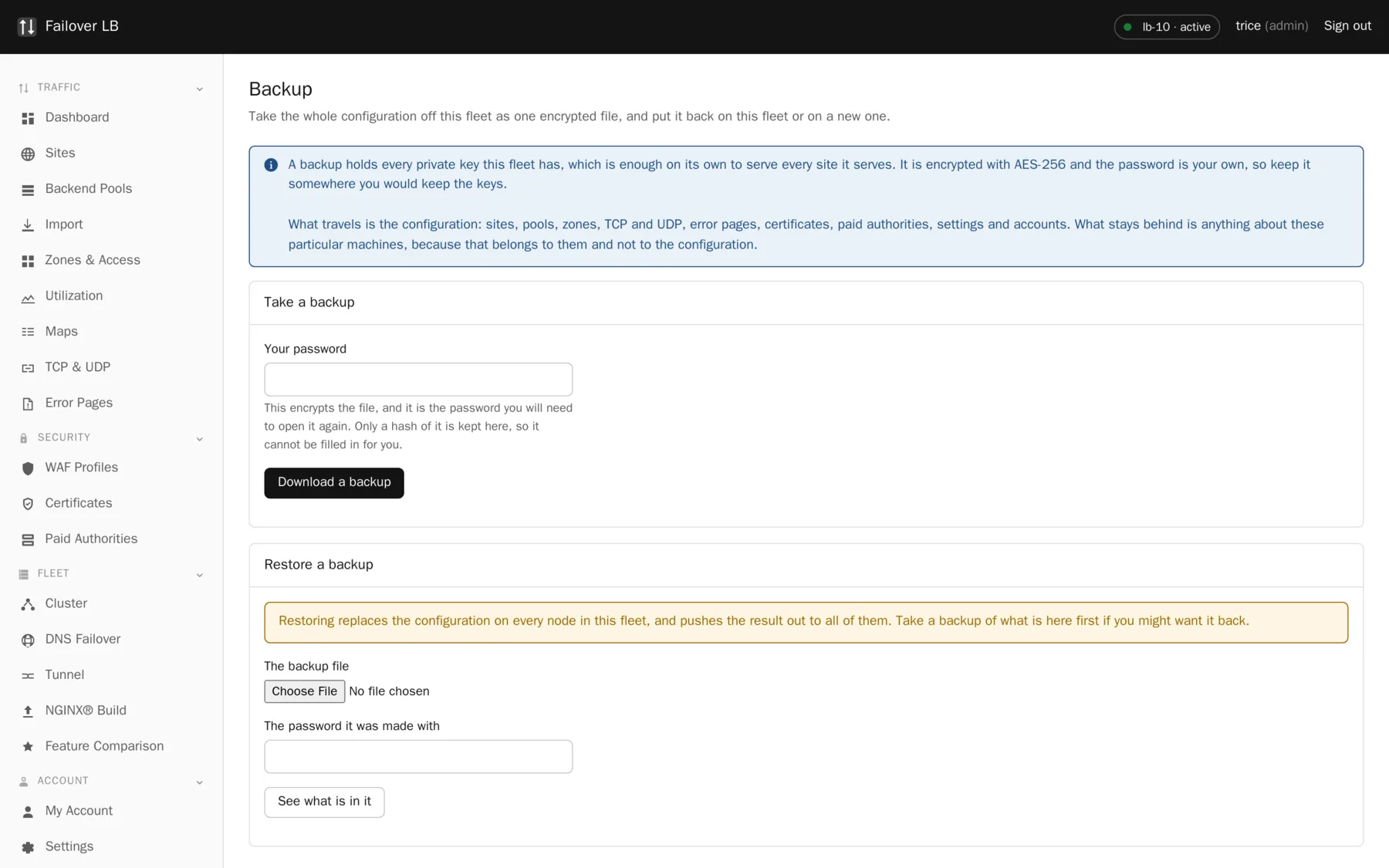
A backup here is one file containing everything this fleet is configured to do. It is deliberately not a copy of the machines.
What is in it
Sites, backend pools, zones and access lists, TCP and UDP services, error pages, certificates, paid authorities, settings and accounts. Plus the certificate files themselves where the fleet holds them, which matters: it means a restored fleet can serve traffic immediately rather than waiting to be issued new certificates it cannot get until it is already serving traffic.
What is deliberately left out: node names, cluster membership and the identity of each server. Those belong to the machines rather than to the configuration. A backup restored onto new servers should let those servers do the job, not make them pretend to be the old ones.
This file is equivalent to your private keys
A backup contains every private key this fleet holds. That is enough on its own to serve every site you serve, to anybody who has the file and the password. Keep it where you would keep the keys themselves, and delete old copies rather than letting them accumulate, because every one of them stays valid for as long as the keys inside it do.
How it is protected
The file is a zip encrypted with AES-256, which any current zip tool can open. The password is your own login password, which is why you are asked for it when taking a backup and again when restoring one. Only a hash of your password is stored here, so it cannot be filled in for you.
Being asked twice is not ceremony. It is what encrypts the file, and it also proves that whoever is at the keyboard is the account they are signed in as, which is worth doing for an operation that hands out every key you have.
Two honest limits. The encryption in the zip format derives its key with fewer rounds than a modern password vault, so the file is only as strong as the password against somebody who has it and time to spend. And the password cannot be changed without changing your login. For a backup that will sit somewhere you do not control, put it inside something that does its own key derivation properly.
Where to keep it
- Not only on the load balancers. A backup that lives on the machine it protects is no help when that machine is what failed.
- Somewhere access is controlled, because of what is in it.
- Somewhere you will still have access if you are locked out of this system, since restoring is how you get back in.
Restoring
- Choose the file and type the password it was made with.
- Press See what is in it. This opens the archive and reports what it holds without changing anything. Use it. It is where you find out you have the wrong file, or the wrong password, at a point where nothing has been replaced.
- Read the report, especially the addresses it came from.
- Type
restorein the confirmation box and press the button.
The confirmation is typed rather than clicked because this replaces the running configuration of every load balancer, and a dialog that can be dismissed by reflex is not the right amount of friction in front of that.
Restoring onto different servers
This is the case a backup exists for, and it has a trap in it.
Almost everything in a backup is names and settings, which mean the same thing wherever they land. DNS failover answers are the exception. An answer is a literal address whose whole job is to be handed out to the internet. Carried across unchanged onto new servers, those answers would still name the old ones: the new load balancers would come up, report themselves healthy, and send every visitor to machines that are not theirs. Both ends would look correct.
So a restore repoints them. An answer tied to a load balancer by name is rewritten to that load balancer's own address on the fleet you are restoring onto, matching the kind of address. Anything it cannot match is left exactly as it was and reported to you by name, because guessing which new machine replaces which old one is not something to do quietly with a DNS record.
One setting is deliberately not restored
The list of networks allowed to reach the management interface stays as it is on the fleet you are restoring onto. You are rebuilding from wherever you happen to be, which need not be anywhere on the old fleet's list, and restoring it is a good way to be locked out of the system you are in the middle of recovering.
What is already kept for you
| What | Where |
|---|---|
| The previous nginx configuration, before every apply | /var/backups/nginx-fleet-manager |
| The configuration database | The Docker volume nfm-data |
| Certificates and keys | /etc/nginx/nginxmgr/certs |
| Your settings and secret key | The .env file in the install folder |
The one file worth guarding separately
.env holds the secret key that unlocks stored passwords and authenticator seeds. Without it a restored database cannot read its own encrypted values. Keep a copy somewhere safe and separate.
Common questions
Can somebody else restore my backup?
Only with the password it was made with, which is that person's login password at that time. A backup taken by somebody else needs their password, not yours.
Does restoring reach every node?
Yes. It finishes the job across the fleet rather than only on the node you are signed in to, because a restore that landed on one load balancer would leave the fleet split.
Do tunnel workloads come back?
The configuration does. Each machine still points at the old load balancers, so run the enrollment command again on each one from the new fleet.
Step by step instructions
The how to section has searchable, task shaped answers. Search it for backup.
Related features
Change history and rollback
Every apply kept, and put back with one click.
Read moreClustering
Every node holds the whole config. No central controller.
Read moreCertificate lifecycle
Issue, renew, replicate and retire, without a calendar.
Read moreUpgrades
One node at a time, tested before anything is replaced.
Read more